
Your first print order
How To Order
Follow the screens. From choosing your print to collecting your order.
Product options
Choose what you want to print.
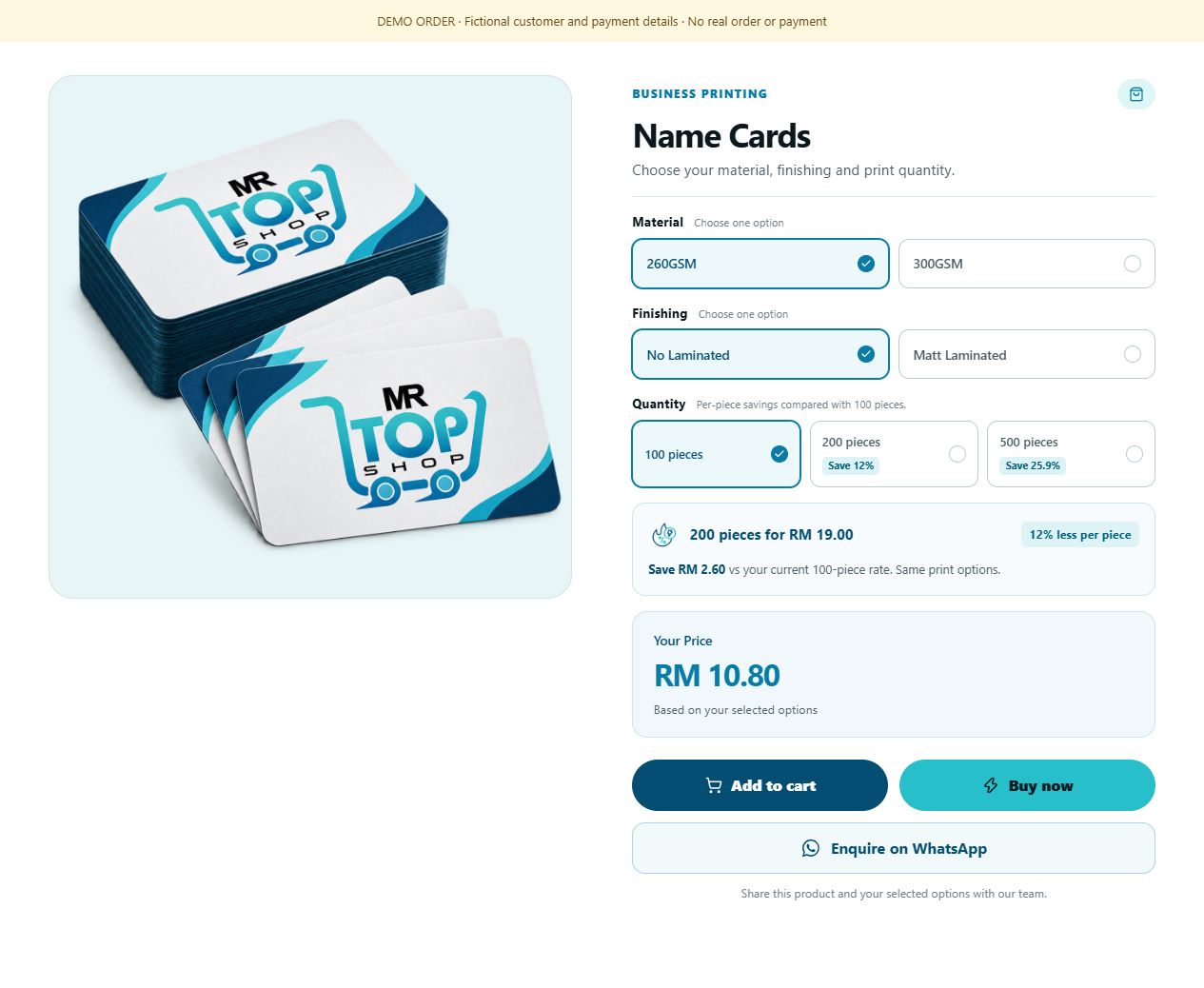
Open a product in Shop or Categories.
- Choose your size, material, finishing and print quantity.
- Check the price, then Add to cart or Buy now.
Need more detail?
Start in Shop or Categories. Open a product to see its specifications, images and available printing options.
- Select every required option, such as size, material, finishing and print quantity. Options depend on the product.
- Check the price for your selection and the product description. A set and the number of pieces in that set are different quantities.
- Choose Add to cart to keep shopping, or Buy now to move toward checkout.
The illustrated Name Cards order is an example, not a fixed price or an offer. Your current options and price appear on the product page.
Review cart
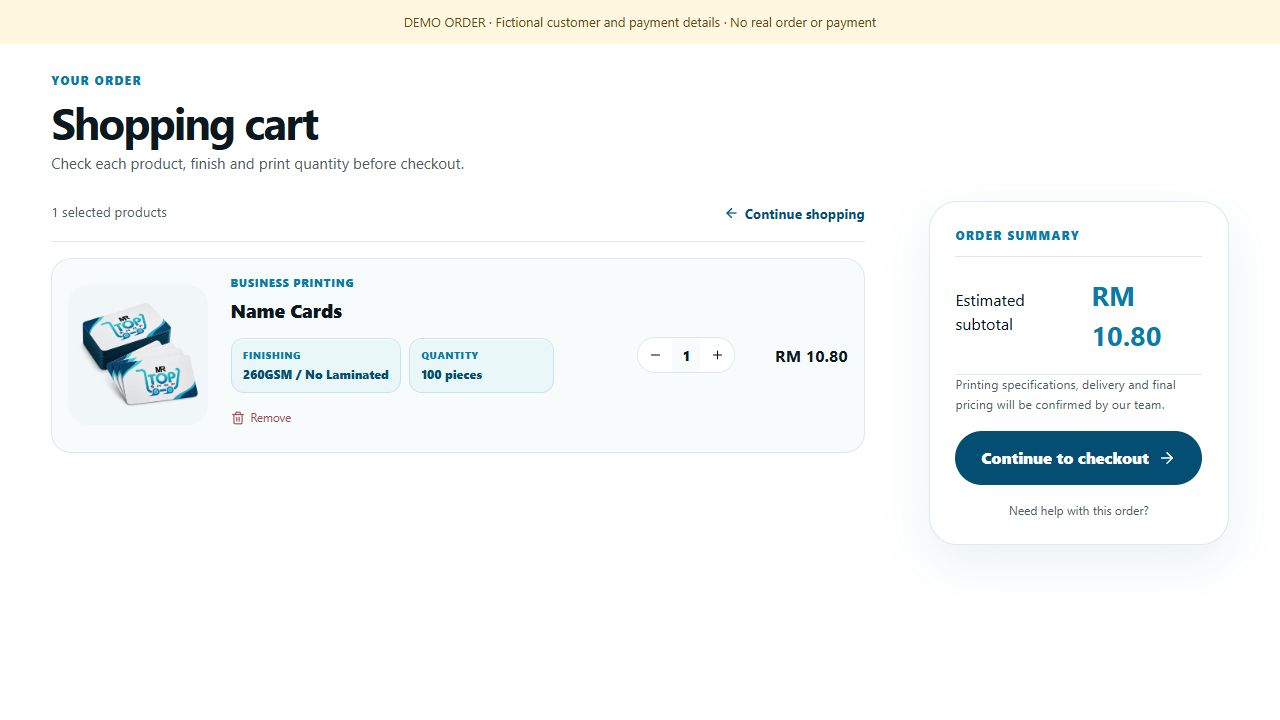
Double-check your cart.
Check your printing options and number of sets.
- Update quantities or remove anything you don’t need.
- Select Continue to checkout.
Need more detail?
Open Cart to review everything before placing your order.
- Check the product, selected options and pieces per set for each item.
- Adjust the number of sets or remove an item if needed. Different designs or specifications can be added as separate cart items.
- Continue to checkout. Delivery, applicable tax and discounts are confirmed in the checkout summary.
If you need to change printing options, return to the product page and configure the item again before ordering.
Your account
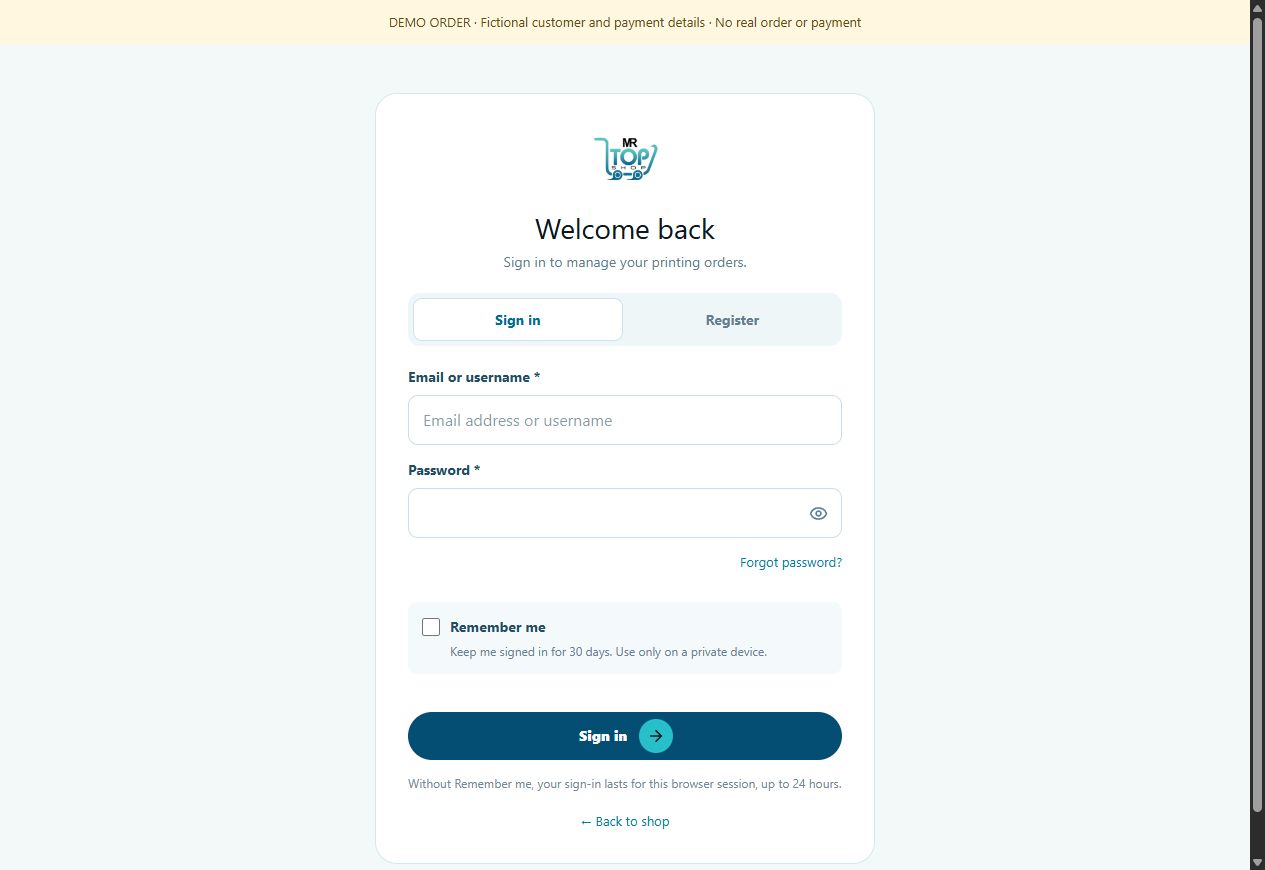
Sign in or create your account.
Sign in, or choose Register if you’re new.
- Use an email you can access for order updates.
- Your cart stays with you when you sign in.
Need more detail?
You need a customer account to submit an order and access its private files, payment details and updates.
- If you already have an account, sign in using your email or username and password. New here? Choose Register / Create account and complete the registration form.
- Use an email address you can access: customer notifications are sent to your account email.
- Complete the security check if displayed. After signing in from checkout, you return to checkout with your cart kept.
Use Forgot password? if you cannot sign in. Never share your password with the print team.
Artwork & design
Tell us who will provide the design.
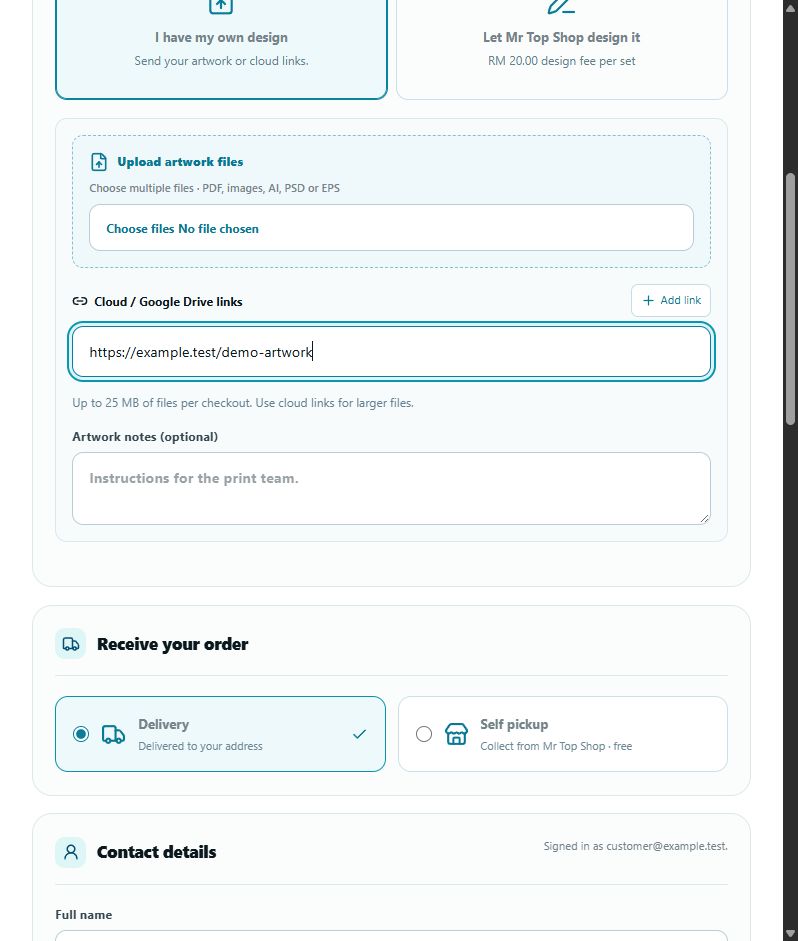
Choose a design option for each item.
- Own design: upload your files or share accessible cloud links.
- Design service: tell us your requirements and check the fee.
Need more detail?
Choose a design option for each cart item in Artwork & design.
- I have my own design: upload your print artwork or provide an accessible cloud link. Add front and back files where your product requires them.
- Let Mr Top Shop design it: where available, describe the layout, wording, colours and style you want. Add logos, reference files or links. The design fee is shown before you order.
- Check that cloud sharing lets our team open the files. Follow the product’s artwork instructions, and use clear, high-resolution artwork.
A design option and its required artwork or brief must be provided for every item. Work starts after payment is verified.
Delivery & checkout
Choose delivery or self pickup.
Choose delivery or self pickup.
- Check your contact details and delivery address, if needed.
- Review the final total and Terms & Conditions.
Need more detail?
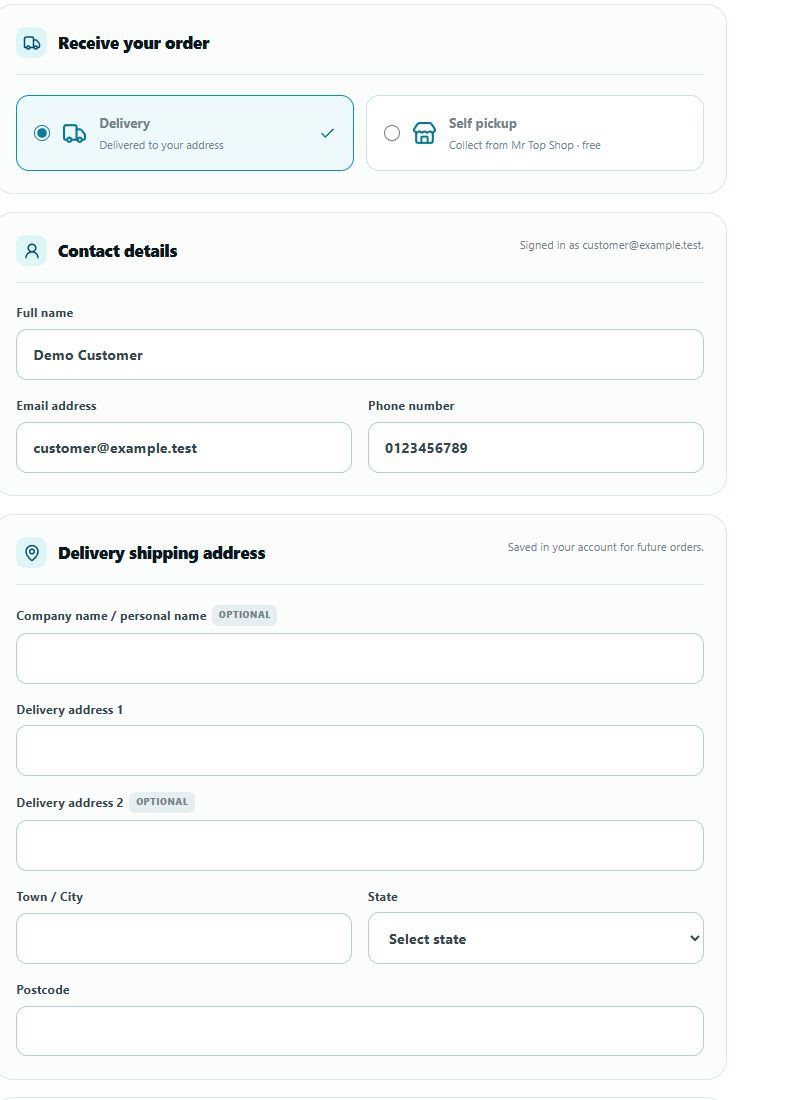
In Receive your order, choose an available fulfilment option, then check your contact details.
- Delivery: select a saved address or enter a complete Malaysian delivery address, including state and postcode.
- Self pickup: review the collection location and hours. Confirm your name and phone number; wait for the Ready to collect update before travelling.
- Apply a valid coupon if you have one. Check printing, design fees, delivery, discounts, applicable tax and the final total, then review our Terms & Conditions before placing the order.
Your account email receives the order updates. An order being placed is not the same as payment being confirmed.
Payment & receipt
Pay, then submit your receipt.
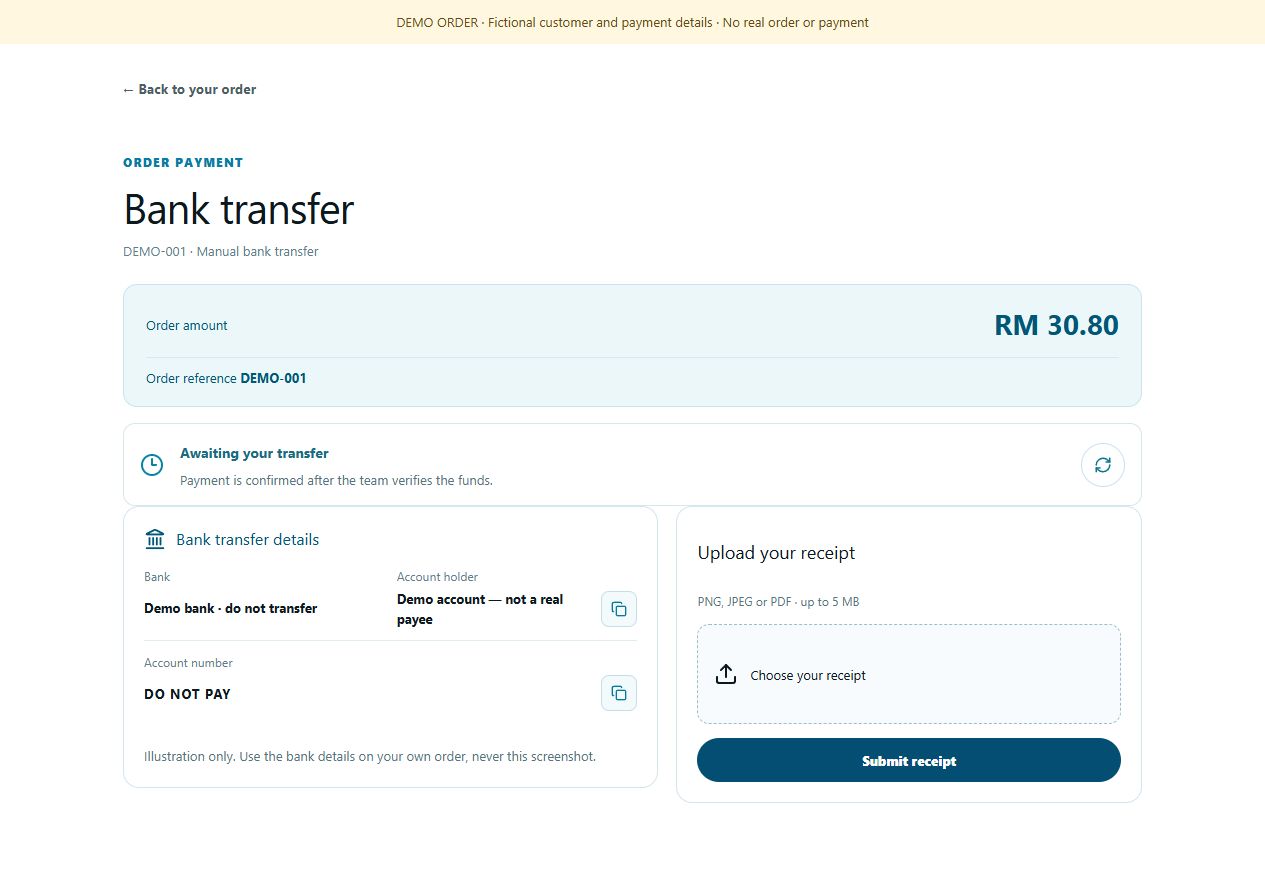
Pay by bank transfer, then upload your receipt.
- Use the bank details on your own order—not this screenshot.
- Pending verification? Wait for confirmation; don’t pay again.
Need more detail?
The current website payment method is manual bank transfer. Online gateway payment is not currently available.
- Choose Place order & pay by bank transfer. Your order reference and bank-transfer instructions appear on the payment page.
- Transfer the exact total using the bank details or bank QR displayed for your own order. Do not use the demo details pictured in this guide.
- Choose your receipt, check the preview, then select Submit receipt. Receipts can be PNG, JPEG or PDF, up to 5 MB.
- Pending verification means the team is checking the funds—not that payment failed. Do not pay again. If your receipt is rejected, read the reason and upload a replacement.
You can return through My Account → Payments or your order’s payment link. Payment is successful only after verification.
Artwork approval
Review your artwork before printing.
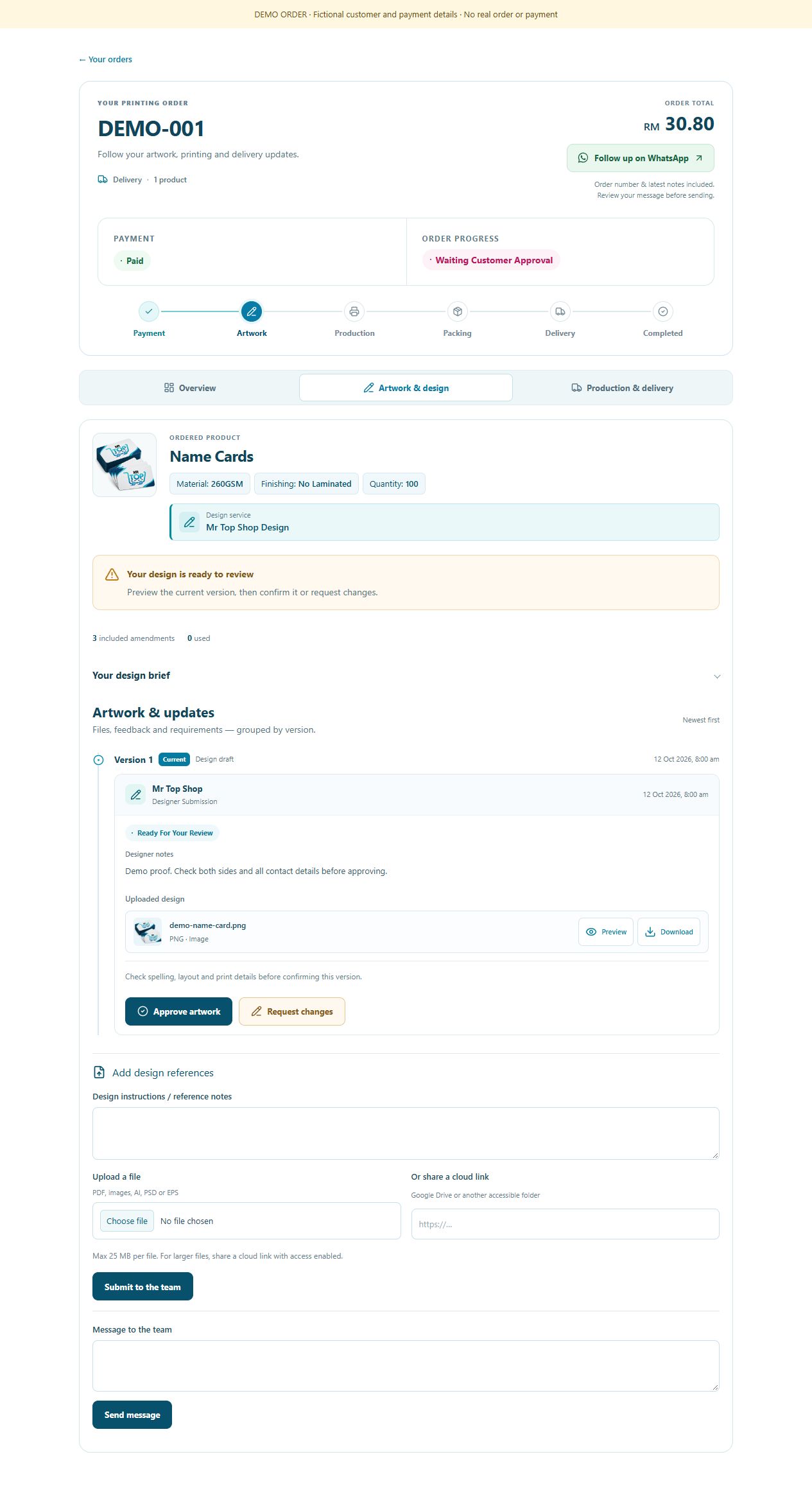
Open your order’s Artwork & design tab.
- Check the latest version, spelling and printing details.
- Approve the final artwork, or Request changes.
Need more detail?
Open My Account → Orders, choose your order, then open Artwork & design when a review is requested.
- Open the latest proof or artwork version. Check spelling, contact information, size, orientation, colours and front/back content carefully.
- If changes are needed, use Request changes and explain exactly what to amend. Add updated references where needed. Only approve the final version you want printed.
- If the team requests replacement artwork, read its note and submit the updated files or accessible links. Review any extra revision quote before proceeding.
Approved artwork becomes the printing reference. Production proceeds once payment, artwork approval and printing specifications are confirmed.
Track & receive
Follow your order all the way through.
Follow progress in My Account → Orders.
- Delivery: check courier tracking when it appears.
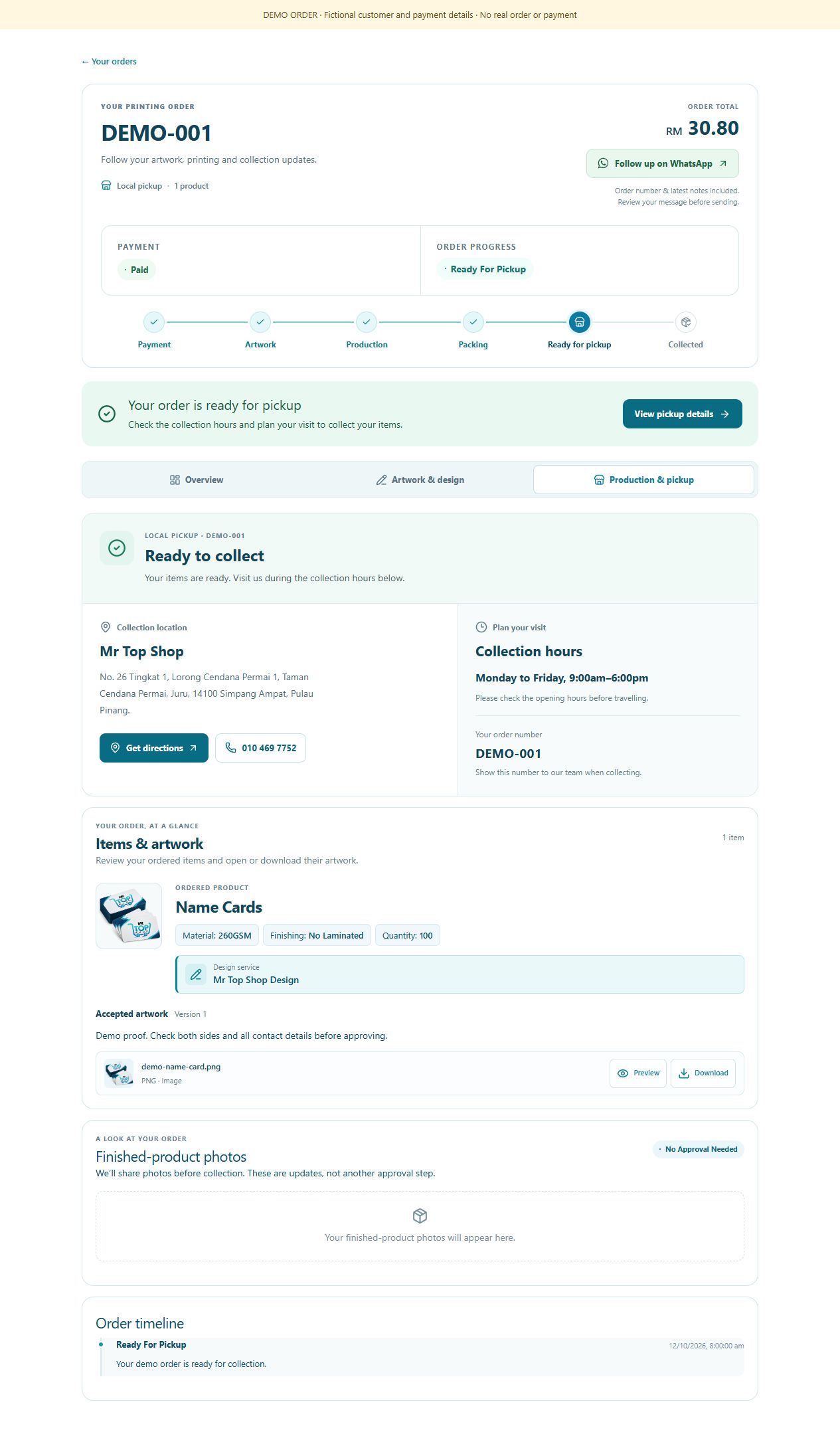
- Pickup: wait for Ready to collect before travelling.
Need more detail?
My Account keeps the order status, customer actions and private order files together.
- Check your order page and account email for payment, artwork and order-status updates. Reply or submit requested information through your order page.
- For delivery, open Production & delivery to view courier and tracking details when the shipment is created.
- For self pickup, open Production & pickup. Collect only after Ready to collect appears, using the location, hours and order reference shown.
- Need help? Contact us with your order reference. For a concern, see Dispute Resolution within Terms & Conditions.
Finished-product photos are progress updates, not an extra approval request. Delivery estimates begin after payment and artwork/specification confirmation; see Shipping policy for details.
We’re here to help
Need a hand?
Ask our team. Already ordered? Include your order reference.